Kitbashing a QR Code Alarm in Android Tasker and val.town
Recently I built my own bespoke sleep tracking system using Beeminder and Tasker. At the time I wrote my first post on the system, it was working but it had a few awkward elements to it. For one thing, all the maths was done in Tasker’s extremely awkward XML-based scripting system, meaning that any modifications to the formula would involve either editing it on the phone itself1. Also, the alarm app I was using started showing me ads. So, not my ideal system by any means.
To avoid the ads, I could try finding another alarm app that sends an Intent upon triggering the alarm that Tasker can pick up on, but why not cut out the middleman and do it all on Tasker instead? Tasker can trigger a script to run at a certain time and day of the week, and the script can show a popup and play a noise (literally just the first .wav file I found on my phone’s filesystem) when it is run. And that’s all a basic alarm clock really needs.
But my system needs something a bit more complicated. To get me out of bed for real, I need to scan a QR code to turn off the alarm. There is probably some way to do this all on-device, but as I said above I also want to offload the actual number-crunching and posting to Beeminder part of the system to somewhere where I can edit it more easily. A simple way is for the QR code to encode a link which runs a little script on the cloud which does the actual work (and also turns off the alarm). This sort of tiny web application is pretty much the exact thing val.town was made for. I could describe the whole thing, but the code on val.town is public: https://www.val.town/x/tguernier/wake-tracker 2. Minus the Beeminder stuff, the QR code alarm part of it is incredibly simple: just save a value that states whether the alarm has been turned off and return that value whenever Tasker asks for its status. Tasker just sits in a for loop calling the val’s status endpoint until it sees that value become true and then stops the alarm.
If you want the Tasker source it’s here: https://pastebin.com/Q8FSiHMJ. Remember to change VAL_URL_GOES_HERE to the endpoint you’re using to monitor alarm status.
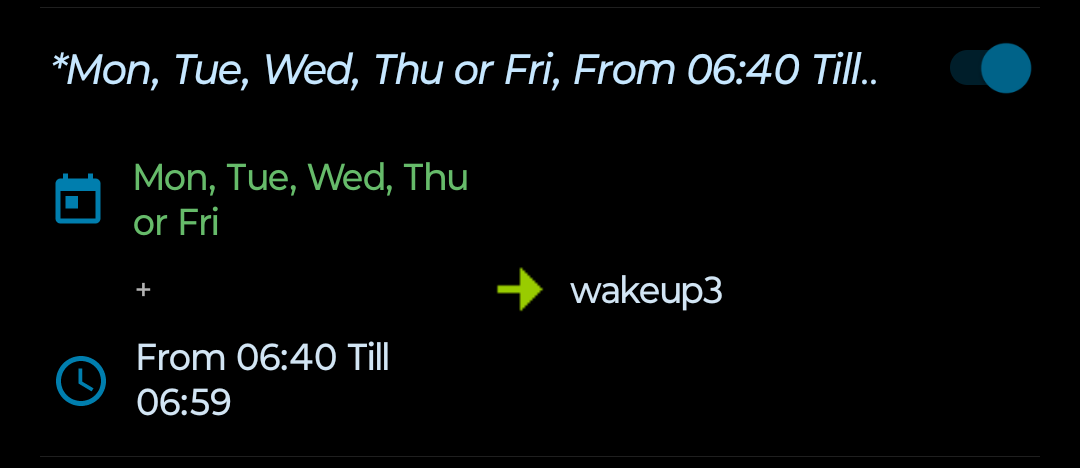
P.S. It took me a while to figure out that you can actually trigger a Tasker task on a certain time of day on certain days of the week (e.g. Saturdays and Sundays at 07:10). To do this, set the days of the week you want the task to be triggered (using the plus icon on the Profiles screen), and then long-press the day context (the ‘Mon, Tue, Wed…’ text) and add a Time context for when you want the task to trigger. Also remember to confirm the changes (tick icon) so the task actually triggers!